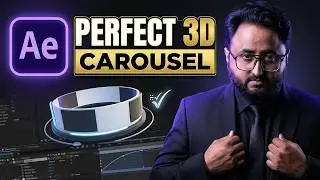
3D in After Effects and Camera Tool and Views Tips Basic to Advanced Urdu | Hindi
Creating 3D animations in After Effects can be quite rewarding once you get the hang of it. Here are some tips on using 3D features and the Camera Tool in After Effects:
Setting Up 3D Layers
Enable 3D Layer: Click on the 3D layer switch (a small cube icon) next to the layer in the Timeline panel. This allows the layer to be manipulated in 3D space.
Adjust Position and Rotation: Use the Transform properties (Position, Rotation, Scale) to place and orient your 3D layer in space. You’ll notice additional transform properties for Z-axis manipulation.
Anchor Point: Make sure your layer's anchor point is set correctly, as this will affect how the layer rotates and scales in 3D space.
Working with Cameras
Create a Camera: Go to Layer New Camera. Choose the type of camera (e.g., one-node or two-node camera) based on your needs.
Camera Settings: Adjust the camera settings like focal length, aperture, and depth of field to get the desired look.
Animate the Camera: You can animate the position and point of interest of the camera to create dynamic movements. Use keyframes to set different camera positions and movements over time.
Camera Tools:
Unified Camera Tool (C): Allows you to orbit, track, and dolly the camera in one tool.
Orbit Camera Tool: Rotates the camera around the point of interest.
Track XY Camera Tool: Moves the camera left, right, up, and down.
Track Z Camera Tool: Moves the camera closer or further away (dolly in/out).
Working with Views
Active Camera View: This is the view through your camera. Use this to see what the final render will look like.
Custom Views: You can create custom views to get a better sense of your 3D space. Go to the View menu and choose from Custom View 1, 2, or 3.
Multiple Views: To better understand your 3D composition, you can split the Composition panel into multiple views. Click the dropdown menu in the Composition panel and select 2 Views Horizontal or 4 Views, etc.
Adjust View Layout: You can click on the view layout button at the bottom of the Composition panel to change how your views are arranged.
Depth of Field and Focus
Enable Depth of Field: In your Camera settings, enable Depth of Field to create a more realistic 3D effect where objects closer to the camera are in sharp focus, and objects further away are blurred.
Adjust Focus Distance: You can animate the focus distance to shift the depth of field throughout your scene.
Lighting and Shadows
Add Lights: Go to Layer New Light to create lights in your 3D scene. There are different types of lights (Point, Spot, Ambient, and Parallel) to choose from.
Adjust Light Settings: Control the intensity, color, and position of the lights to create the desired effect.
Enable Shadows: In the light settings, enable "Cast Shadows" and make sure your 3D layers have "Accept Shadows" enabled in their material options.
Practical Tips
Use Null Objects: Parent your camera to a null object to simplify complex camera movements. Animate the null instead of the camera for easier control.
Layer Order: The order of your 3D layers in the Timeline panel can affect how they interact with each other, particularly with shadows and lights.
Previewing: Preview your animation frequently to ensure that your 3D elements are interacting correctly and that your camera movements are smooth.
By mastering these tools and techniques, you'll be able to create compelling and dynamic 3D animations in After Effects.
#AfterEffects
#AdobeAfterEffects
#AE
#AELearning
#AETutorial
#AfterEffectsTutorial
#AdobeAE
#LearnAfterEffects
#AfterEffectsTraining
#MotionGraphics
Skill-Specific Hashtags
#AfterEffectsBasics
#AEBeginner
#AdvancedAfterEffects
#AfterEffectsSkills
#AEMotionGraphics
#AECompositing
#AEAnimation
#AETips
#AETechniques
#AEMotionDesign
Content-Specific Hashtags
#AETemplates
#AEPresets
#AEPlugins
#AfterEffectsExpressions
#AEProjects
#VFX
#VisualEffects
#2DAnimation
#3DAnimation
#AETitleDesign
Industry Hashtags
#MotionGraphicsDesign
#GraphicDesign
#VideoEditing
#PostProduction
#FilmMaking
#CreativeCloud
#AdobeCreativeCloud
#DigitalArt
#VisualArts
#CreativeIndustry
Community Hashtags
#MotionGraphicsArtists
#AEMotionGraphicsArtists
#AfterEffectsCommunity
#AEArtists
#MotionDesigners
#CreativeCommunity
#DesignCommunity
#VideoEditors
#VFXArtists
#DigitalCreators
Engagement Hashtags
#TutorialTuesday
#LearnSomethingNew
#HowToAE
#DIY
#AETutorials
#MotionDesign
#CreativeProcess
#AnimationTutorial
#VideoTutorial
#VideoEditingTutorial
Platform-Specific Hashtags
#YouTubeTutorial
#YouTubeLearning
#YouTubeEducation
#VideoOnDemand
#YouTubeChannel
#SkillShare
#Udemy
#OnlineLearning
#DigitalLearning
#LearnOnline
Inspirational and Motivational Hashtags
#CreativeInspiration
#KeepLearning
#NeverStopLearning
#Inspiration
#ArtOfAnimation
#CreativeGrowth
#DesignInspiration
#DailyArt
#CreativeJourney
#LevelUp
Trends and Challenges
#Trending
#NewSkills
#TrendingNow
#CreativeTrends
#AEMotion
#AfterEffectsChallenge
#AnimationChallenge
#MotionChallenge
Auf dieser Seite können Sie das Online-Video 3D in After Effects and Camera Tool and Views Tips Basic to Advanced Urdu | Hindi mit der Dauer stunde minuten sekunde in guter Qualität ansehen, das der Benutzer Animatic Academy 01 Januar 1970 hochgeladen hat, den Link mit Freunden und Bekannten teilen, dieses Video wurde auf Youtube bereits 37 Mal angesehen und es wurde von 3 den Zuschauern gefallen. Viel Spaß beim Betrachtenden Zuschauern gefallen!