How to Set Up Business Card Document in Illustrator | Business Card Size | Adobe Illustrator
How to Set Up Business Card Document in Illustrator, Business Card Size, Adobe Illustrator.
In this tutorial, you’ll learn *how to set up a Business Card Document in Adobe Illustrator* with the correct size and settings for professional printing. We’ll show you step by step how to create the artboard, set the business card dimensions, add bleed and margins, choose the proper color mode, and prepare a print-ready document. This Adobe Illustrator tutorial is perfect for beginners and graphic designers who want to learn business card size, document setup, bleed settings, print preparation, and professional Illustrator techniques.
Standard Business Card Size:
Size (US Standard): 3.5 x 2 inches
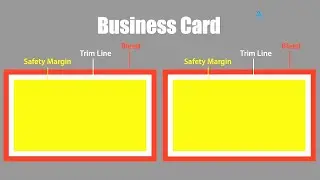
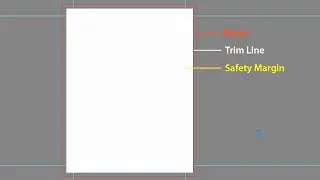
Bleed: Add 0.125 inch on each side (Total: 3.75 x 2.25 inches)
Resolution for print: 300 DPI
Color Mode: CMYK
Step-by-Step Guide
1. Create a New Document
• Open Illustrator
• Go to File → New
• Set dimensions to 3.75 x 2.25 inches (including bleed)
• Set Color Mode: CMYK
• Set Raster Effects: High (300 PPI)
2. Set Up Guides for Safe Area and Bleed:
Use the Rectangle Tool (M) to create:
• A 3.5 x 2 inch rectangle for the safe area (centered)
• Align it to the center of the artboard
• Lock the guide layer to avoid shifting
3. Design the Front Side:
Include:
• Logo
• Name / Title
• Company Name
• Contact Info (Phone, Email, Website)
• Address (optional)
• Add a creative layout, shapes, or colors that match your branding.
Tools to use:
• Text Tool (T) to add text
• Pen Tool (P) for custom shapes
• Rectangle Tool (M) for layout blocks
• Align Panel for perfect alignment
4. Design the Back Side (Optional)
Could include:
• Company logo
• Tagline
• QR Code
• Brand colors/patterns
• Create a second artboard (same size) if you're making a double-sided card.
5. Typography Tips:
• Use clean, legible fonts (sans-serif works well)
• Keep font sizes readable: 10–12 pt for details
• Make your name/title slightly larger (14–16 pt)
6. Add Bleed Marks (Optional):
• Go to File → Print → Marks and Bleeds
• Enable Trim Marks and Bleed
7. Save for Print:
Go to:
• File → Save As or File → Export
• Choose PDF (Print) or high-res PNG/JPG
In the PDF settings, ensure:
• Bleed is included
• Marks are included
• Compatibility: Acrobat 5 (PDF 1.4) or later
This Video Also Includes: Business Card Size in Illustrator, Business Card Document Setup, How to Set Up Business Card Document, Business Card Setup in Illustrator, Business Card Size Adobe Illustrator, Standard Business Card Size, Business Card Dimensions Illustrator, Business Card Design in Illustrator, Business Card Template Illustrator, Illustrator Business Card Setup, Print Ready Business Card, Business Card Bleed Settings, Adobe Illustrator Business Card, Adobe Illustrator Tutorial, Illustrator Tutorial, Illustrator Tips and Tricks, Graphic Design Tutorial, Print Design, Business Card Design and more.
Watch More At:
/ @gdalam602
Order me on Fiverr:
https://www.fiverr.com/mdnurealam602
Get (A-Z) Alphabetical Logo & Other Logos and Design Elements from Here:
https://www.shutterstock.com/en/g/Nur...
#BusinessCardSize #BusinessCardSetup #BusinessCardDesign #AdobeIllustrator #Illustrator #BusinessCardTutorial #IllustratorTutorial #GraphicDesign #PrintDesign #BusinessCardDesignTutorial
On this page of the site you can watch the video online How to Set Up Business Card Document in Illustrator | Business Card Size | Adobe Illustrator with a duration of hours minute second in good quality, which was uploaded by the user GD Alam 01 January 1970, share the link with friends and acquaintances, this video has already been watched 101 times on youtube and it was liked by 3 viewers. Enjoy your viewing!