How to Automatically Select Layers in Photoshop
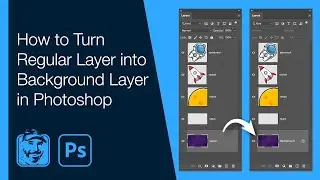
Learn how to activate the Auto-Select feature within Photoshop. Stop having to constantly move between your design and the Layers panel to move content. Details below...
Patreon: / michaelbullo
0:00 - Photoshop Default Layer Selection
By default, Photoshop requires that a layer is first selected within the Layers panel before it can be moved around the canvas using the Move Tool.
1:09 - Activating Auto-Select of Layers
With the Move Tool selected, the Auto-Select feature can be found in the Options bar. If this series of options running across the top of Photoshop is not seen, activate it by selecting Options from the Window menu. When Auto-Select is active, clicking on an element within the canvas will automatically select that layer within the Layers panel.
2:09 - How to Temporarily Activate Auto-Select
Auto-Select can be temporarily turned on/off by holding down the Command/Control key while using the Move Tool.
2:54 - Selecting Layers Via Right Mouse Click
Right mouse clicking on the canvas with the Move Tool reveals a list of layers below that point that contain content. Selecting a layer from the list selects that layer within the Layers panel.
On this page of the site you can watch the video online How to Automatically Select Layers in Photoshop with a duration of hours minute second in good quality, which was uploaded by the user Michael Bullo 25 October 2020, share the link with friends and acquaintances, this video has already been watched 27,667 times on youtube and it was liked by 281 viewers. Enjoy your viewing!