Flyer Size in Illustrator | How to Design a Flyer in Illustrator | Illustrator Tutorial
Flyer Size in Illustrator, How to Design a Flyer in Illustrator, Illustrator Tutorial.
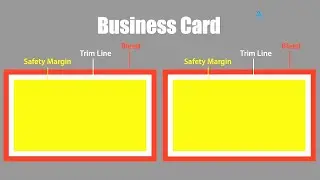
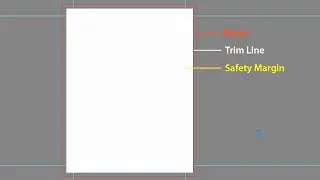
In this video I will show you how to design a flyer, flyer size in illustrator, how to properly making flyer in US and UK, Bleed will be 0.125 in, Trim Line 0.125 in and Safety Margin 0.125 in & others another tutorial links below.
Flyers are one of the most effective and affordable tools for marketing, event promotion, or business advertising. A well-designed flyer can quickly grab attention and deliver key information in a visually compelling way. Adobe Illustrator, with its powerful design tools and precision layout capabilities, is an ideal platform for creating high-quality flyers.
In this guide, we'll walk you through the essentials of how to design a flyer in Illustrator, starting with choosing the right flyer size. Understanding standard dimensions such as A5, A4, or US Letter is crucial for ensuring your design looks professional both on screen and in print.
Whether you're creating a promotional handout, a club event flyer, or a business advertisement, this tutorial will help you set up your document correctly and design an eye-catching flyer from start to finish.
Designing a flyer in Adobe Illustrator involves setting the correct flyer size, configuring bleed settings, and applying good design principles. Here's a full step-by-step guide, including standard flyer sizes:
Standard Flyer Sizes:
These are the most commonly used flyer sizes (in inches and their pixel equivalents at 300 DPI):
• Flyer Size → Inches → Pixels (300 DPI)
• Small 4" x 6" 1200 x 1800
• Half-page → 5.5" x 8.5" → 1650 x 2550
• Standard → 8.5" x 11" → 2550 x 3300
• Large → 11" x 17" → 3300 x 5100
The most common size is 8.5" x 11" (US Letter).
How to Set Up a Flyer in Illustrator
1. Open Adobe Illustrator
Go to File → New.
2. Set Document Settings
In the New Document window:
• Width: 8.5 in
• Height: 11 in
Units: Inches
• Color Mode: CMYK (for print)
• Raster Effects: High (300 ppi)
• Bleed: 0.125 in (Top, Bottom, Left, Right)
• Bleed ensures there are no white edges when printed and trimmed.
• Click Create.
Designing the Flyer
Layers to Use:
• Background layer (full bleed area)
• Safe zone/content layer (text/images that shouldn't get cut)
• Guides for margins
Tips:
• Keep text at least 0.25 in away from edges (safe zone).
• Use high-resolution images (300 DPI minimum).
• Use bold headlines and a clear hierarchy (Headline → Subhead → Body).
• Stick to 2–3 fonts for clean design.
• Include your contact info, CTA (Call to Action), and branding.
Exporting for Print
Once done:
• Go to File → Save As → Choose PDF
• In the Save Adobe PDF window:
• Preset: [High Quality Print]
Under Marks and Bleeds:
• Check Trim Marks
• Check Use Document Bleed Settings
• Click Save PDF
This Video Also Includes: Flyer Size in Illustrator, How to Design a Flyer, Flyer Design in Illustrator, Flyer Size, Flyer Dimensions, How to Make a Flyer in Illustrator, Flyer Design Tutorial, Professional Flyer Design, Creative Flyer Design, Business Flyer Design, Event Flyer Design, Print Ready Flyer, Adobe Illustrator Tutorial, Illustrator Tutorial, Graphic Design Tutorial, Print Design, Flyer Layout Design, Marketing Flyer Design, Illustrator Design Tutorial, Adobe Illustrator and more.
Watch More At:
/ @gdalam602
Order me on Fiverr:
https://www.fiverr.com/mdnurealam602
Get (A-Z) Alphabetical Logo & Other Logos and Design Elements from Here:
https://www.shutterstock.com/en/g/Nur...
#FlyerDesign #FlyerSize #Illustrator #AdobeIllustrator #FlyerDesignTutorial #GraphicDesign #PrintDesign #DesignTutorial #IllustratorTutorial #CreativeDesign
Nesta página do site você pode assistir ao vídeo on-line Flyer Size in Illustrator | How to Design a Flyer in Illustrator | Illustrator Tutorial duração hora minuto segundo em boa qualidade , que foi baixado pelo usuário GD Alam 01 Janeiro 1970, compartilhe o link com seus amigos e conhecidos, no youtube este vídeo já foi visto 298 vezes e gostou 2 espectadores. Boa visualização!