How to install Amazon Corretto 21 in Windows 11 with JAVA_HOME Environment Variable
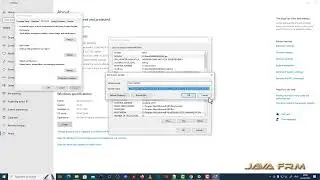
In this video we are going to see How to install Amazon Corretto 21 in Windows 11 with JAVA_HOME Environment Variable and How to Compile and Run Java Module Program.
In this Example.
src --- contains two java modules Message and Print Modules. Each Module must contain module-info.java which is mandatory.
classes --- will store all the compiled class files of Java Modules.
Here Message Module contains module-info.java which exports the com.javafrm package, so that other modules can access the package and com.javafrm package contains Message.java and has one method.
Class name and Method should be public, then only you can access this class from other modules.
Next Print Module contains contains module-info.java which requires (calls) Message Module.
It contains org.javafrm package which contains HelloWorld.java (Main class) and access the class and methods from Message Module.
Example Java Commands:
javac --module MessageModule -d D:\Java-Module-Programs\Modules\classes --module-source-path D:\Java-Module-Programs\Modules\src
javac --module PrintModule -d D:\Java-Module-Programs\Modules\classes --module-source-path D:\Java-Module-Programs\Modules\src
java --module-path D:\Java-Module-Programs\Modules\classes --module PrintModule/org.javafrm.helloworld
#corretto #java #jdkinstallation #installjdk #installjava #javainstallation #javajdk #amazoncorretto #javahome #windows11 #jdk21
On this page of the site you can watch the video online How to install Amazon Corretto 21 in Windows 11 with JAVA_HOME Environment Variable with a duration of hours minute second in good quality, which was uploaded by the user java frm 05 January 2024, share the link with friends and acquaintances, this video has already been watched 483 times on youtube and it was liked by 2 viewers. Enjoy your viewing!