Maya Tricks and Secrets - Part 7 - Toggle Outliner/UV Editor, History Stack, Import Multiple Files
To support this channel go here https://gumroad.com/malcolm341
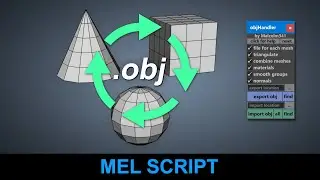
In this video learn how to toggle the outliner and UV editor with hotkeys, use the history stack, and import multiple objects with one click in Autodesk Maya.
//Toggle outliner script
int $isOutlinerOpen = `workspaceControl -q -visible Outliner`;
if ($isOutlinerOpen == 1)
{
workspaceControl -edit -close "Outliner";
print "Outliner closed.";
}
else if ($isOutlinerOpen == 0)
{
OutlinerWindow;
print "Outliner opened.";
}
//End of outliner script
//Toggle UV editor script
if ((size(`textureWindow -query -parent polyTexturePlacementPanel1`)) == 0)
{
TextureViewWindow;
print "UV Editor opened.";
}
else
{
deleteUI polyTexturePlacementPanel1Window;
print "UV Editor closed.";
}
//End of UV editor script
//Toggle UV editor/Toolkit script
if ((size(`textureWindow -query -parent polyTexturePlacementPanel1`)) == 0)
{
TextureViewWindow;
workspaceControl -e -visible true UVToolkitDockControl;
print "UV Editor/Toolkit opened\n";
}
else
{
deleteUI polyTexturePlacementPanel1Window;
workspaceControl -e -visible false UVToolkitDockControl;
print "UV Editor/Toolit closed\n";
}
//End of UV editor script
//Switch between outliner and channel box docked tabs script
global proc m341_switchOutlinerChannelBox()
{
//Check which tab is currently in focus
int $tabOutline = `workspaceControl -q -raise "Outliner"`;
int $tabChanbox = `workspaceControl -q -raise "ChannelBoxLayerEditor"`;
if ($tabOutline == 1)
{
OpenChannelsLayers;
}
if ($tabChanbox == 1)
{
OutlinerWindow;
}
}
m341_switchOutlinerChannelBox();
On this page of the site you can watch the video online Maya Tricks and Secrets - Part 7 - Toggle Outliner/UV Editor, History Stack, Import Multiple Files with a duration of online in good quality, which was uploaded by the user malcolm341 25 November 2018, share the link with friends and acquaintances, this video has already been watched 5,997 times on youtube and it was liked by 245 viewers. Enjoy your viewing!


![[THE BIGGEST ATTEMPTED IN HISTORY] Dolina, Barton and Gillespi can't stop laughing](https://image.4k-video.cc/id-video/mMx-MKJtAF8)